How to put multiple links in your Instagram bio
Instagram lets you add up to five links to your bio, but only the first one shows on your profile. If you have more places to send people, one link in bio page does the job better.
You can put up to five links in your Instagram bio. Go to your profile, tap Edit profile, then Links and Add external link, and paste the URL.
The catch: however many links you add, your profile only shows the first one, followed by “and 4 more”. Everything else is one extra tap away. If you have a shop, a YouTube channel, commissions and a couple of other socials, it usually works better to make one link in bio page and put its URL first. This guide covers both.
The short version
- Two or three links? Add them straight to Instagram.
- Four or more, or you want them to look good? Put one link in bio page first.
How to add links to your Instagram bio
In the Instagram app:
- Tap your profile picture at the bottom right to open your profile.
- Tap Edit profile.
- Tap Links, then Add external link.
- Paste the URL, add a title and tap Done.
Add the second to fifth links from the same Links screen. You can drag them into a different order there; the link at the top is the one your profile shows.
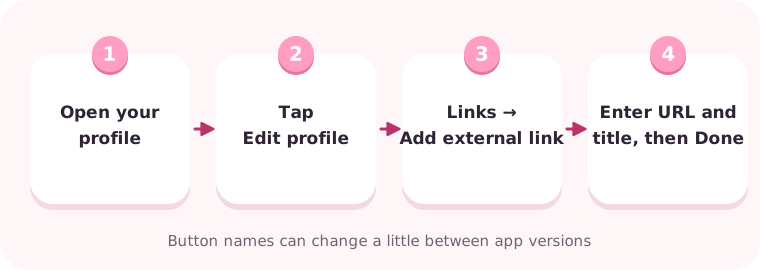 Profile → Edit profile → Links → Add external link.
The title is optional, but fill it in. In the list of links it is what tells people where each one goes, so keep it short and literal: “YouTube”, “Commission info”. Instagram renames buttons now and then, so the labels in your app may differ slightly.
What visitors see when you add several links
With two or more links, your bio shows the first link and “and 4 more” (or however many there are). To see the rest, a visitor has to tap again and pick from a plain list.
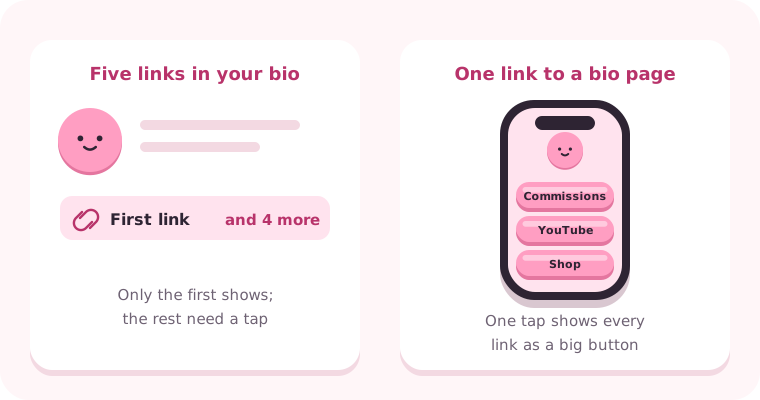 Instagram’s list is text only. A link in bio page shows every link as a big button.
That is fine for two links. Past that, people start skimming past the ones that matter.
When a link in bio page works better
A link in bio page is a single page with your photo, a line about you and a button for each place you want people to go. Instagram gets one URL; the page does the rest.
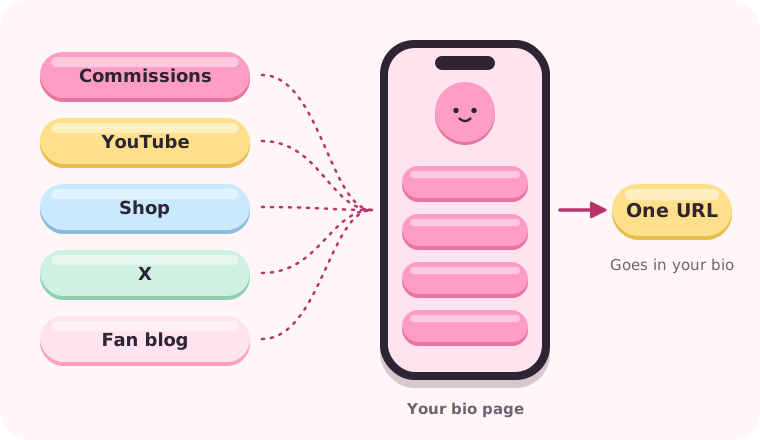 Gather every destination on one page, and give Instagram a single URL.
Compared with Instagram’s own link list, a bio page lets you:
- Show every link as a large, easy-to-tap button
- Add a photo, your name and a short bio, so people know whose page it is
- Change the links without changing the URL, so you never have to edit Instagram again
- Reuse the same URL in your TikTok, X or YouTube profile
Make a cute link in bio page with miiLink
miiLink is an iPhone app for making a link in bio page that actually looks cute. It is getting ready for the App Store. Making a page takes three steps:
- Pick a theme. There are 24, across fandom, dreamy, K-style, natural, simple and retro (six are free). Switch any time.
- Claim your ID and fill it in. Your ID becomes the page URL. Add a photo, display name, a bio of up to 160 characters, up to 20 links and up to 10 social icons.
- Copy the URL into Instagram. On the Share screen, copy the URL and add it as the first link in your bio, as above.
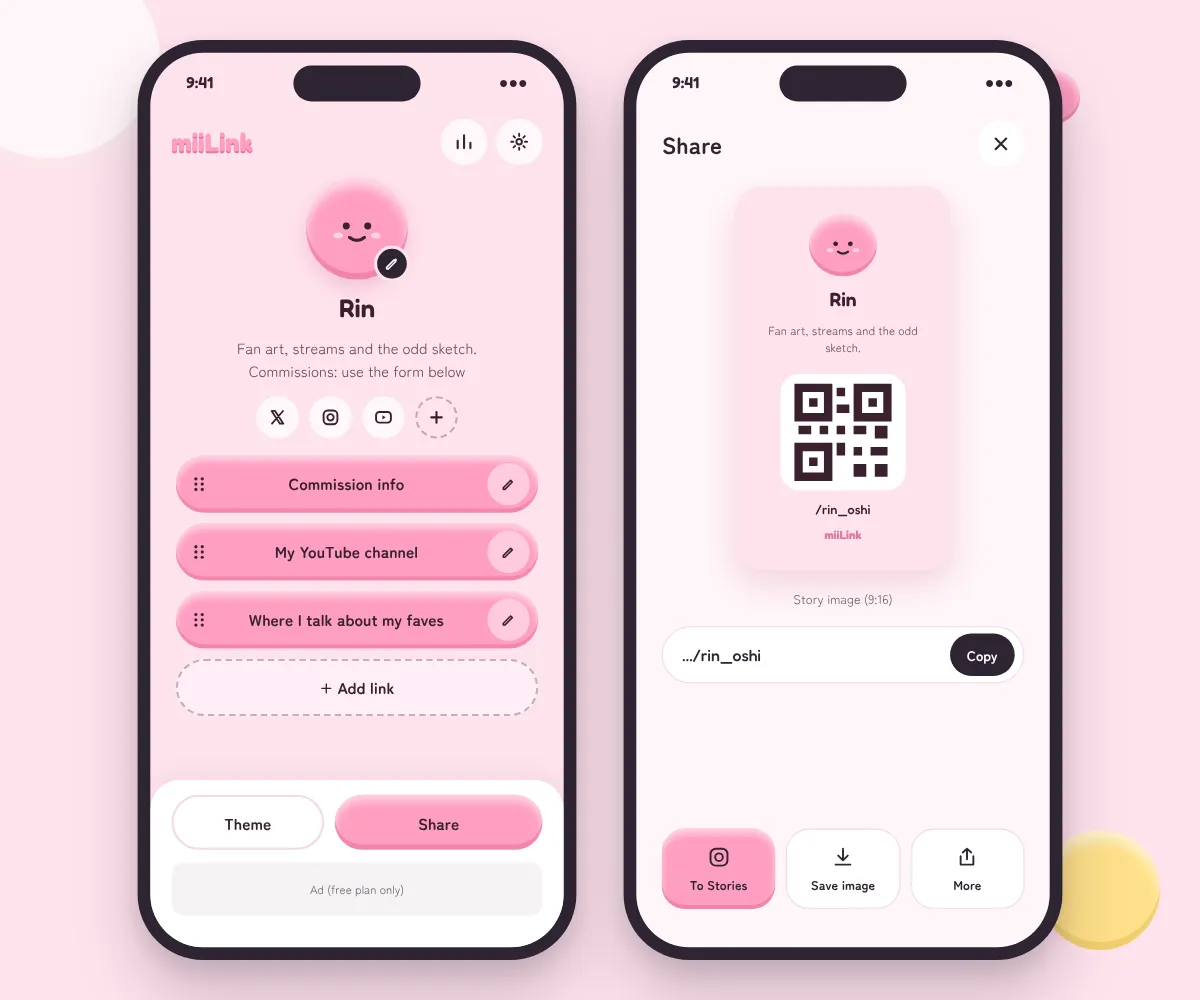 The editor is the finished page. The Share screen copies the URL, shows a QR code and saves a story image.
What you see in the editor is exactly what goes live, and it saves as you go. Add or reorder a link and you are done.
How to order your links so people tap them
People read from the top, so put what matters right now first.
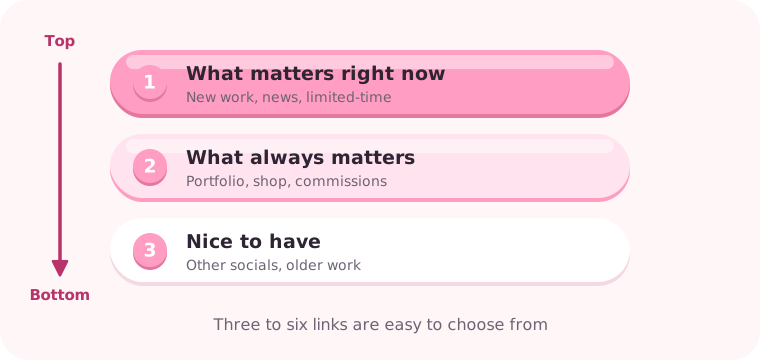 News and new work at the top, the evergreen links next, extra socials last.
- Keep it to three to six. miiLink takes up to 20, but a short list is easier to choose from. Hide links you are not using instead of deleting them.
- Write titles that say what is behind them. “Commission info” beats “Link 1”; “New stickers in the shop” beats “Shop”.
- Say who you are in one line. “Fan art, streams and the odd sketch” is plenty.
- Rotate with the season. When a launch or event is over, move it down or hide it. The URL stays the same, so Instagram needs no changes.
Use the same URL everywhere
The URL works far beyond your Instagram bio.
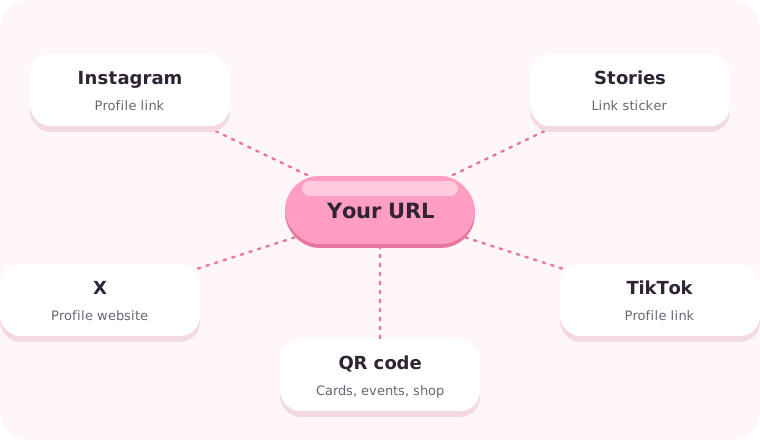 One URL for every profile, your Stories and a printed QR code.
- Instagram Stories: add the URL with the link sticker. miiLink’s story image, which has your page design and a QR code, makes a good background.
- TikTok and X: paste the same URL into the profile link or website field.
- QR code: print it on a business card, a market stall sign or a shop counter so people can open your page on the spot.
Common mistakes
- Putting URLs in captions. They are not clickable. Say “link in bio” and keep the link in your profile.
- Dead links. Tap through your own page now and then, and remove links to finished campaigns or deleted accounts.
- Never checking it as a visitor. Open your page in a browser where you are not logged in to see what everyone else sees.
With two or three links, Instagram’s own Links screen is enough. Once you have more places to send people, make one bio page and put its URL first.
Questions
How many links can I put in my Instagram bio?
Up to five external links. Add and reorder them under Edit profile → Links. Your profile shows the first link; visitors tap it to see the rest.
Can I put a clickable link in an Instagram caption?
No. URLs in captions are not clickable. Write "link in bio" in the caption and keep the link in your profile. In Stories you can use the link sticker.
Is there a free way to make a link in bio page?
Yes. With miiLink, making a page, adding links and social icons and sharing it are free. The free plan shows ads on your page.
Do I need to update Instagram every time I change my links?
Not with a link in bio page. The page URL stays the same when you add, remove or reorder links on it, so your Instagram profile never needs touching.